Office Plug-in Installation
The ECMP Zero Footprint Office Integration plug-in contains a few actions which will enable the editing of Microsoft Office documents without any client components. These actions are described here. This section only describes the installation of the plug-in. Additional steps are necessary for the integration with IBM Content Navigator or IBM Case Manager.
Installing the Plug-in#
To install this plug-in you have to take the following steps:
- Download the latest version of the plug-in and copy the jar-file to the location on your WebSphere server where you want to store custom plug-ins.
- Navigate to the admin desktop in the IBM Content Navigator application.
- Select the New Plug-in action in the Plug-ins section.
- In the New Plug-in dialog specify the path or URL of the location you used in the first step and Load the plug-in.
- Now the dialog will be populated with the configuration options. Supply the configuration (see the next section) and select the Save and Close action.
Configuring the Plug-in#
In this section you can configure how the path the Microfost Office applications should use to access the different WebDAV resources will be composed.
Note
The configuration values should correspond with the configuration of the ECMP Zero Footprint Client Configuration plug-in. Check the configuration of that plug-in for the correct values.
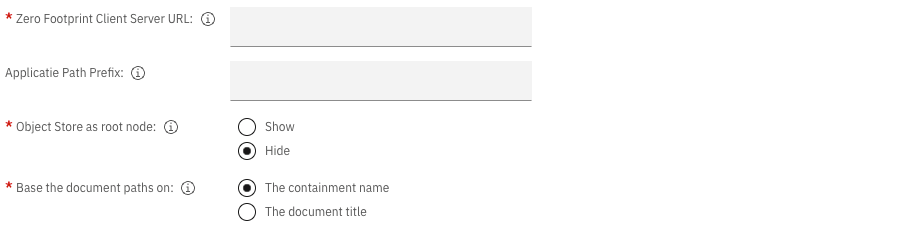
| Input | Explanation |
|---|---|
| Zero Footprint Client Server URL | Specify the URL to the WebDAV application (without trailing slash!) |
| Application Path Prefix | The prefix of the application path (without a trailing slash!). This value is used as the top level name of the URL to the application. If you don't specify a value then this part is skipped. |
| Object Store as root node | Specify if the object store is shown as the root node. |
| Base the document paths on | Specify if the document paths should be based on the containment name or the document title. |
Configuring the Desktop#
Perform the following task for each desktop using the plug-in:
- Navigate to the admin desktop in the IBM Content Navigator application.
- Open the desktop in the Desktops window and goto to the Plug-ins section of the desktop.
- If the Enable all deployed plug-ins for use with this desktop radio button is checked then no further action is necessary. Close the desktop.
- If the Select the deployed plug-ins to enable for use with this desktop radio button is checked then you have to explicitly select the plug-in.
- Select the ECMP Zero Footprint Office plug-in.
- Finally save the desktop changes with the Save and Close action.
The actions are now available to use with IBM Content Navigator or IBM Case Manager.