Class Configurations#
Introduction#
Classes play an important role in a Content Engine object store. Every piece of content is coupled to a specific class. Classes are configured with the Class Configuration. Therefore the configuration of the application is also centered around the different classes configurations. Folders and documents behave differently, so their respective configuration editors are also different. Within the folder classes there is a special subset of Case folders. Case folders are related to the IBM FileNet Case Manager and IBM BAW applications and behave slightly different than ordinary folders. Therefore there is also a special configuration editor for Case folders.
Adding new class configurations#
There are two ways you can use to add a new class configuration:
- Select New Class Configuration from the Class Configurations section in the start page.
- Select New Class Configuration from the toolbar in the Class Configurations tab.
First a dialog will appear where you can select the object store and the target class. The class configuration editor will open next. This is a Blockly interface where you can edit the different aspects of the class configuration.
Mapping property values#
When a user adds a document or a folder to the object store using the Zero Footprint Client, Windows Explorer will only allow the user to enter the name of the new object. In practice, class configurations will often contain additional properties. Some of the properties will even be required. To comply to the object store configuration you have to provide default values for the different properties. You can do this in the property mapping section of the class configuration editor.
To configure property mapping you have to perform the following steps:
- Select a block from the Property Mapping palette, and drag the block to the property mapping section of the class configuration editor. There are two types of property mapping blocks, for single valued properties:

and multi valued properties:

- Select the name of the property you want to map from the dropdown
- Select a value fom the Values palette, and drag the value to the property mapping block:

- Multi value properties can stacked:

Info
If your class does not contain multi value properties then the multi value block will not be shown
Inheriting property values#
A common use case when adding documents to the object store is that the document inherits property values from the folder or the case the document is added to. This can also be accomplished with property mapping.
To configure property value inheritance you have to perform the following steps:
- First add the class you want to add as the source of the property value from the Add Extra Classes command on the toolbar. You can either select a folder class or a case class.
- Select the desired class in the dialog:
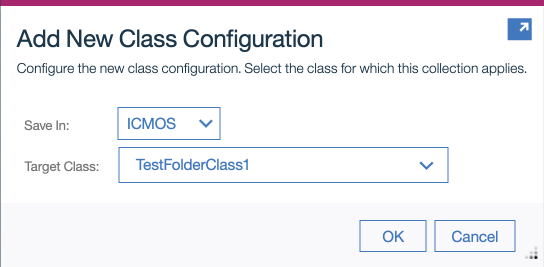
- The properties of the class are now added to the Values palette, and ready to be used:

Info
Currently only single value property inheritance is supported
Adding Actions#
In many situations, when you are integrating the Zero Footprint Client with an existing FileNet implementation, there are a lot of business rules involved. For instance, when the a user adds a document, specific authorization must be applied to the document. The same may apply when the users moves the document to another folder. You can handle these special situations with an Event Script. This is a script that is executed when a specific action is performed by the user. You can configure event scripts for folders and cases for these user actions: created, moved, renamed or deleted. For documents you can also use these action but also some additional actions: written, checked in or canceled checkout.
To configure the event script that will be execute when an actions is performed you have to perform the following steps:
- From the Actions palette select the event script block:

- From the first dropdown list select the action that will trigger the event script
- From the second dropdown list select the event script that must be performed.
The event script blocks can be stacked, so you can add multiple events to a single class configuration. Checkout the Server Scripts section to see how you can write the event scripts.
Preventing Actions#
Sometimes you want to prevent certain actions to happen. There is a special block in the Actions palette which you can use in this situation. Note that these blocks are unconditional, they will always prevent the configured action from happening. If you want more fine control when to prevent a specific action you can use this using the return value of an event script.
To configure the prevent actions you have to perform the following steps:
- From the Actions palette select the prevent action block:

- From the dropdown list select the action that you want to prevent.
Changing dates#
Windows explorer shows two dates to the user:
- The date that the document or folder was added,
- The date that the document or folder was last modified.
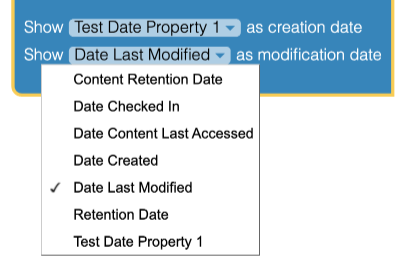
The default behavior of the application is that the values of respectively Date Created and Date Last Modified are shown. You may however choose to select the value of a different date property present in the class definition.
You can change the date by select the desired property from the drop down list:
Security inheritance#
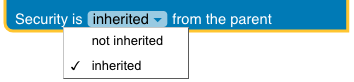
For document classes you should specify how the security parent should be handled when a document is filled in a folder or moved to another folder. You can specify if the folder should act as the security parent of the document or if the value of the security parent should be kept empty. You can select the desired value from the drop down list:
Changing icons#
Sometimes it may be visually appealing to show a different icon for a folder of a specify class. You can for instance choose a specific icon based on the the content of the folder. The icons you can choose are from the build-in icons of the Windows operating system.
To configure the icon of the folder you have to perform the following steps:
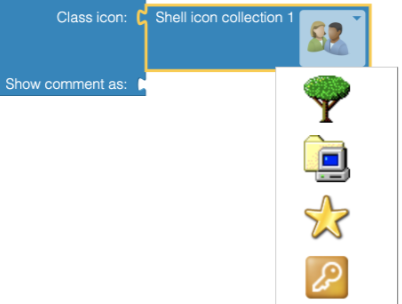
- Select a shell icon collection from the Icons palette. You can choose between two different icon collections.
- Attach the shell icon block to Class Icon section and select the desired icon from the drop down list:
Note
Custom icons are only available for folders. The icons of documents are based on the file extension.