Server Scripts#
Introduction#
The application uses server scripts for two different purposes. A server script can be executed as part of a subscription if a specific event occurs. For instance some additional actions may by taken when a user adds a document to an object store. A server script can also act as an a data source. If you are configuring a collection the data source can be used to provide dynamic information for the query used in the collection. The programming language used in server scripts is JavaScript. The application has a JavaScript editor allowing you to edit your server script. This editor will also check if your JavaScript has the correct syntax.
Adding Data Source Scripts#
There are two ways you can use to add a new data source script:
- Select New Server Script > New Data Source Script from the Server Scripts section in the start page.
- Select New Server Script > New Data Source Script from the toolbar in the Server Scripts tab.
First a dialog will appear where you can provide the name and the description of the data source script:

You also have to specify the object store where the data source script will be stored. A JavaScript editor will open next, containing some boilerplate code for your data source script:
/**
 * This is the data source description
 */
/**
 * This method is called when the query requires a value from an external data
 * source.
 *
 * @param objectStore
 *            the object store
 * @return the value
 */
function getDataSourceValue(objectStore) {

    // TODO add implementation
}
The description you supplied in the dialog is added as comment at the top of the editor. When the application needs a value from the data source then the getDataSourceValue() method is called with the current object store as an argument. The value returned by this function is used by the application as the value of the data source.
Adding Event Scripts#
There are two ways you can use to add a new event script:
- Select New Server Script > New Event Script from the Server Scripts section in the start page.
- Select New Server Script > New Event Script from the toolbar in the Server Scripts tab.
First a dialog will appear where you can provide the name, the description and the events that you want handle with this event script:
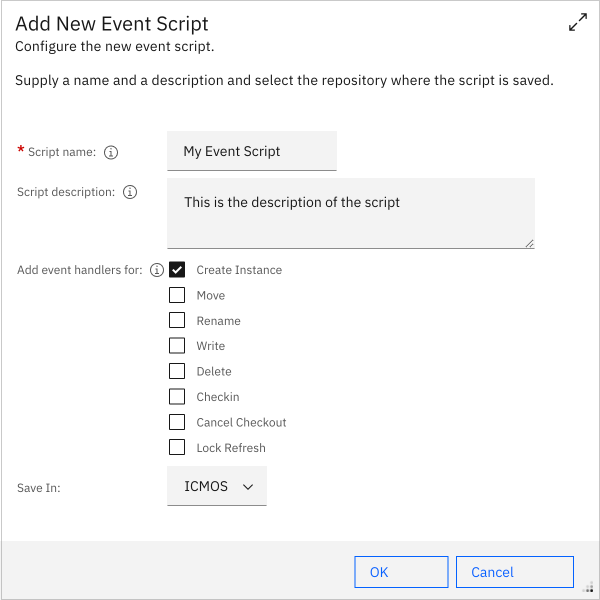
You also have to specify the object store where the event script will be stored. A JavaScript editor will open next, containing some boilerplate code for your event script:
/**
 * This is the description of the script.
 */

/**
 * This method is called when an engine object is created. This can be a folder
 * or a document. At this point the object is not yet saved of filed. It the
 * class configuration also included property mapping, the property mapping is
 * applied prior to this action.
 *
 * If this method returns false then the object should not be created by the
 * application.
 *
 * @param engineObject
 *            the engine object
 * @param parentFolder
 *            the parent folder
 * @return boolean indicating if the object should be created.
 */
function onCreateObject(engineObject, parentFolder) {

    // TODO add implementation
}
The description you supplied in the dialog is added as comment at the top of the editor. In the class configuration documentation there is a description how you can couple a script to a specific action. When the application performs the action then the corresponding JavaScript method is called, using information from the action as arguments. The code block above can contain code that will be executed when a user adds a new object to the object store. In that case the onCreateObject() method is called with the new object and the parent folder as argument.
Besides modifying the new object that is added, you can also use the event script to prevent and action from happening. If the server script returns the boolean false value then the operation that user was performing will be aborted, returning a "Access Denied" error. When the script returns no value or the boolean true value then the action will not be aborted. The prevent action should only be used for special situations. If you want to prevent an action under all circumstances you can better use class configuration option to prevent an action.
Most of the events are pretty trivial. They are the result of the user interacting with the Windows explorer or the editing application. A special event is the "Lock Refresh" event. When a document is edited in an Office application the document is locked by the application. This triggers a checkout of the document in the object store. Office will subsequently issue a lock request every 450 seconds to indicate that user is still editing the document. This can be handled in an event script with the above mentioned "Lock Refresh" event.
Adding Additional Events#
If you forgot to add an event when you created the event script, then you can use the Add Event action from the editor toolbar to add additional event code to the event script:
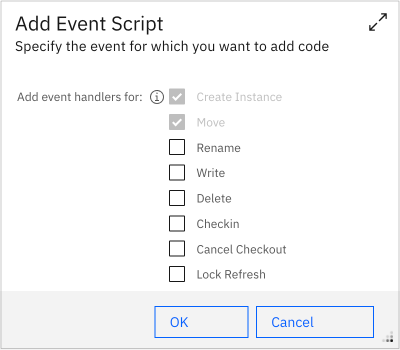
The dialog will only contain checkboxes for events that are not yet added to the event script.
Writing Event Scripts#
The application uses the Mozilla Rhino JavaScript Engine for executing the JavaScript Code. This engine is written in Java and is widely used for embedded use in Java applications.
Note
The IBM Administrative Console for Content Platform Engine also uses this JavaScript engine for script execution.
Using Java Classes#
This engine can interact with Java objects on the class path of the application. If you want to use Java classes in your event script file you can either import a Java package or a specific class. A Java package is imported with the importPackage() method:
importPackages(Packages.com.filenet.api.constants);
Packages. A specific Java class is imported with the importPackage() method:
importClass(Packages.com.filenet.api.constants.RefreshMode);
If you want to leverage your own Java classes in the event scripts code then you can use WebSphere shared libraries. You have to copy your jar-file (and supporting jar-files) to a location on the server, create the shared library and couple it to the ZFC Server application. Check this location for detailed instructions. If you make any changes to your jar-file then you can just overwrite the existing jar-file on the server to use the updated functionality.
Using auto completion#
As JavaScript is not a statically typed language, auto completion is feature which is difficult to implement. There is however some rudimentary support for auto completion for the standard variables of the different parameters of the event methods. By pressing the control-space keys you get suggestions of the different methods which are available on the parameter:
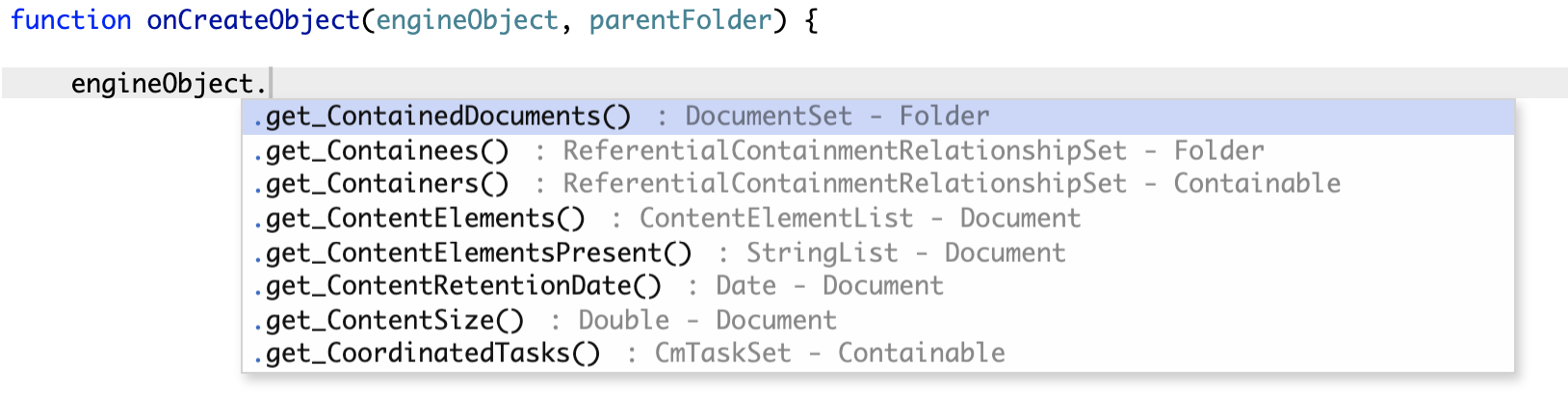
Note that in this example engineObject can represent either a document or a folder. Therefore the auto complete shows suggestions from both the Document and Folder class. It is up to the script developer to pick the correct method.
Note
There are plans to enhance the auto complete function in futures releases.
Writing to the Console#
When you are writing server scripts it is very handy if you can let the script provide some debugging output. The scripting runtime contains a special console object which can be used to output debugging information. You can use the log() method of this object to write debugging information:
console.log('Some debugging information');
You can review this debugging information at different locations:
- In the console pane of the Server Script Debugger. This option is usually not available in production environments, as it is not recommended to install this plug-in in these environments.
- In the log-files of the WebSphere application server.
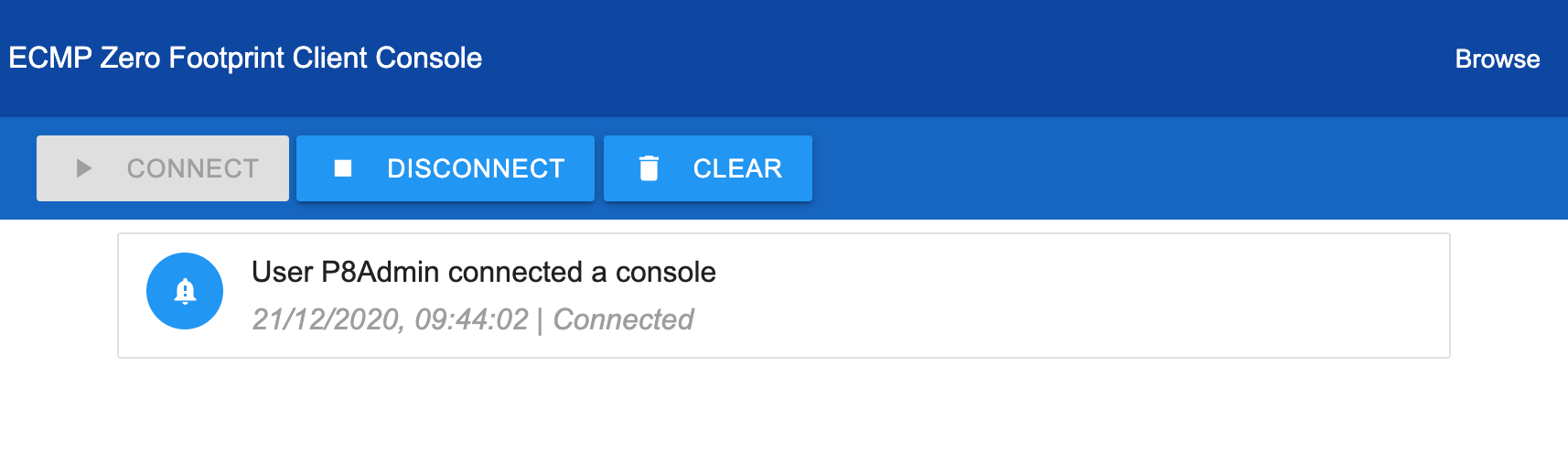
- In the Console section of the HTML interface of the WebDAV server:
Fetching HTTP data#
When you are integrating the application with other applications, fetching HTTP data from an external source is a common practice. Therefore the application contains an embedded HTTP client you can use from your server scripts. The HTTP client is a thin wrapper around the OkHttp client. Use this code snippet to use the thread safe, singleton instance of the HTTP client:
var client = HttpClient.getInstance();
get() for simple synchronous fetching of HTTP data. This method takes an URL as input variable and returns the response data as a string. This code snippet shows how you easily fetch JSON data and use the standard JavaScript JSON parser to extract the desired information:
var url = "http://localhost:9080/demoserver/user1.json";
var client = HttpClient.getInstance();
var obj = JSON.parse( client.get(url) );
console.log( "E-mail " + obj.name  );
getClient() method to fetch the internal okhttp3.OkHttpClient object. The classes okhttp3.Request and okhttp3.Response are also available in the scripting context, so there is no need to explicitly import these classes. This example shows how to use these objects if you are interested in the response code of the request instead of the content returned by the server:
var request = new Request.Builder().url(url).build();
var client = HttpClient.getInstance().getClient();
var response = client.newCall(request).execute();
if ( response.code() == 200) {
    // ...do something...
}
You can checkout the OkHttp documentation to see more information how you can interact with these objects.
Note
A feature planned for a futures release is to leverage the caching functionality of the OkHttp library. This way the number of actual HTTP requests may be reduced.
Caching data#
The event scripts execute in isolation. A specific script execution is not aware of the execution of other scripts. You can use the build-in cache object for short lived communication between different script executions. This cache will hold a value for one minute, allowing it to be used by scripts executing just after each other. A use case for this is for instance when a user deletes a tree of folders in the Windows explorer application. This will trigger multiple delete events within a short period for all the documents and folder affected. Use this code snippet to use the thread safe, singleton instance of the cache object:
var cache = Cache.getInstance();
You can instantiate this object in the global context of your server script. The cache object uses a string as the key value, any object can be stored as the value. The following code can be used to store data in the cache:
var value = {cachedNumber: 42};
cache.put("theKey", value);
And you can use the following code to fetch the data again:
var cachedValue = cache.get("theKey");
System.out.println(cachedValue.cachedNumber);
Note
This is not a distributed cache. If you use different application servers, each server will have it's own cache instance. Use "sticky sessions" on your load balancer or proxy server to make sure that a specific user is always directed to the same application server.
Event Script Examples#
In this section we will present some scripting snippets used to solve some common problems.s
Returning multi valued data#
If you want your data source to return a list of object then you can simply use an JavaScript array:
function getDataSourceValue(objectStore) {
    return ['MultiValue1', 'MultiValue2'];
}
Fetching the current user#
importClass(Packages.com.filenet.api.core.Factory);

// ...skipped code...

var connection = objectStore.getConnection();
var currentUser = Factory.User.fetchCurrent(connection, null);
console.log("Current user: " + currentUser.getProperties().getStringValue("DistinguishedName") );
Implementing a recovery bin#
This more advanced example shows how you can implement a recovery bin. The standard behavior when a document is deleted is that the version series object coupled to the document is deleted. If you want to implement a recovery bin then you have to accomplish two tasks:
- Prevent the deletion of the version series object:
- Create a recovery item containing the version series.
In the code below we assume that there is one fixed recovery bin for the entire object store. In practice you will more likely use a recovery bin coupled to a specific context (e.g. a user). This results in the following code:
importClass(Packages.com.filenet.api.core.Factory);
importClass(Packages.com.filenet.api.util.Id);
importClass(Packages.com.filenet.api.constants.RefreshMode);

function onDeleteObject(engineObject) {

    console.log("Moving document to recovery bin");

    // Prevent the default delete action

    var versionSeries = engineObject.get_VersionSeries();
    versionSeries.clearPendingActions();

    // Fetch system object store

    var objectStore = engineObject.getObjectStore();
    var recoveryBin = Factory.CmRecoveryBin.fetchInstance(objectStore,
                        new Id("{20C43C76-0000-C81E-80F9-7A59E56F1736}"), null);

    // Create recovery item

    var recoveryItem = versionSeries.markForDeletion(recoveryBin, 'CmRecoveryItem');
    recoveryItem.save(RefreshMode.NO_REFRESH);

    console.log("Document moved to recovery bin");

    return true;
}
The clearPendingActions() method is used to prevent the pending delete action on the version series object. The recovery bin is fetched next using the id of the recovery bin. Finally the recovery item is created and saved. Note that this method returns a boolean true value. A boolean false is an indication that we want to prevent the entire delete operation. In this case however, we still want to "delete" the document but in a manner. So we don't want the error message a return value of false would trigger.
Using the content of document#
You can use a write subscription to base actions on the content of the document. This JavaScript will perform two actions on text files. If the input text is the string "Illegal content" then the script will return false. In this case the server will prevent the creation of a new document with this content or changing the content of an existing document. In real life you can perform a more sophisticated check. You can, for instance, prevent adding password protected files.
As a second feature, this script also uses the content of the file to set certain properties of the document. Once again, in real life you can make this a little bit more interesting.
importClass(Packages.java.io.BufferedReader);
importClass(Packages.java.io.InputStreamReader);

function onWriteObject(document, mimeType) {

    if ( mimeType !== "text/plain" ) {
        return;
    }
    var inputStream = document.accessContentStream(0);
    var reader = new BufferedReader(new InputStreamReader(inputStream) );
    var inputLine;
    var inputText = '';

    while ( (inputLine = reader.readLine() ) !== null) {
        inputText += inputLine;
    }

    if ( inputText === 'Illegal content') {
        return false;
    }
    document.getProperties().putValue('EmailSubject', inputText);
}
Note
When your are using the content as the value for a property, you have to be extra careful that the value matches the rules of the property. In this example there is no check on the length of the value, resulting in an error if the length of the value exceeds 64 characters.
Creating a date value#
The obvious way to create a Date value is to import the java.util.Date class and use the following code to create the value:
var now = new Date();
This will not work because Date is already a JavaScript class. Also setting a native JavaScript Date object as a property value also does not work. A workaround for this problem is to use the java.util.Calendar class instead and use the getTime() to create a date:
importClass(Packages.java.util.Calendar);

// ...

var now = Calendar.getInstance().getTime();
Minor version checkin#
The ZFC Server supports object stores containing documents with minor versions. This requires setting an extra option in the application configuration. The default behavior of the application is that a document is checked in as a major version. You can override this with the following server script:
importClass(Packages.com.filenet.api.constants.RefreshMode);
importClass(Packages.com.filenet.api.constants.AutoClassify);
importClass(Packages.com.filenet.api.constants.CheckinType);

function onCheckinObject(reservation, path) {

    reservation.checkin(AutoClassify.DO_NOT_AUTO_CLASSIFY, CheckinType.MINOR_VERSION);
    reservation.save(RefreshMode.NO_REFRESH);
    return false;
}
In this case the script will do the checkin and the return value false indicates that no further action is required by the application. You also have to coupled this script as a custom checkin action for the document class:

Folder as recovery bin#
Use this code if you want to use a folder as a recovery bin.
/**
 * Script for a personal recovery bin.
 */
importClass(Packages.com.filenet.api.core.Factory);
importClass(Packages.com.filenet.api.constants.PropertyNames);
importClass(Packages.com.filenet.api.constants.RefreshMode);
importClass(Packages.com.filenet.api.property.PropertyFilter);
importClass(Packages.com.filenet.api.constants.ClassNames);

importPackage(Packages.com.filenet.api.query);

importClass(java.lang.System);

/**
 * This method is called when a engine object is about to be deleted. This can
 * be a folder or a document. At this point no delete actions are performed.
 * When the object is a document then the version series object is already
 * fetched.
 *
 * If this method returns false then the object should <strong>not</strong> be
 * deleted by the application. This can be used to implement an alternative
 * deletion strategy, like for example a recycle bin. In that case it is the
 * responsibility of the script to save the object.
 *
 * @param engineObject
 *            the engine object
 * @param path
 *            the path of the engine object
 * @return boolean indicating if the object should be deleted.
 */
function onDeleteObject(document, path) {

    System.out.println("onDeleteObject -> " + path );

    if (path.indexOf("Prullenbak") > 0 ) {
        return true;
    }

    // Prevent the default delete action

    var versionSeries = document.get_VersionSeries();
    versionSeries.clearPendingActions();

    // Fetch the current document containment relation

    var relation = getContainmentRelation(document, path.substring(path.indexOf("zfc") + 3, path.lastIndexOf("/")));
    if ( !relation ) {
        return false;
    }

    // Move document to new location

    moveDocument(document, relation);

    return true;
}

function getContainmentRelation(document, path) {

    var searchSQL = new SearchSQL();

    searchSQL.setFromClauseInitialValue(ClassNames.REFERENTIAL_CONTAINMENT_RELATIONSHIP, "R", true);
    searchSQL.setSelectList(PropertyNames.THIS + "," + PropertyNames.TAIL);
    searchSQL.setWhereClause( "Head = OBJECT('" + document.get_Id() + "') AND Tail = OBJECT('" + path  + "')" );

    System.out.println(searchSQL.toString());
    var searchScope = new SearchScope(document.getObjectStore());
    var objects = searchScope.fetchObjects(searchSQL, null, null, null);
    if (objects.isEmpty() ) {
        return null;
    }

    return objects.iterator().next();
}

function getUsername(objectStore) {

    var connection = objectStore.getConnection();
    var filter = new PropertyFilter();
    filter.addIncludeProperty(0, null, null, PropertyNames.SHORT_NAME, null);
    var currentUser = Factory.User.fetchCurrent(connection, filter);

    System.out.println("Current user: " + currentUser.getProperties().getStringValue(PropertyNames.SHORT_NAME) );

    return currentUser.getProperties().getStringValue(PropertyNames.SHORT_NAME);
}

function moveDocument(document, relation) {

    var objectStore = document.getObjectStore();
    var userPath = "/ECMP Zero Footprint Client Test/" + getUsername(objectStore) + "/Prullenbak";
    System.out.println("User Path: " + userPath );
    var targetFolder = Factory.Folder.fetchInstance(document.objectStore, userPath, null);
    relation.set_Tail(targetFolder);
    relation.save(RefreshMode.NO_REFRESH);
}